WordPress Media Library folders.
Storage wherever you want it.
Media Folders gives the WordPress Media Library the folders it never had: drag-and-drop, nested, colour-coded, searchable. With Pro it also offloads your files to Cloudflare R2 or any S3-compatible storage. Folders are virtual, so nothing moves on disk and not one URL changes.
Why the Media Library stops working past a few thousand files
WordPress ships one flat, endless grid. That is fine for a hundred files and painful for ten thousand.
One flat list, no structure
Core WordPress has no folders. Every image, PDF and video you have ever uploaded lands in the same infinite scroll, ordered by date and nothing else.
Every upload multiplies
WordPress generates several resized copies of each image, and themes and plugins register more sizes on top. The library grows several times faster than the content you actually publish.
Your server pays for it
Disk fills, backups take longer every month, and hosting plans price storage far above object storage — even though media files are static and never needed an application server in the first place.
Virtual folders: organize without moving a single file
Media Folders folders are a lightweight taxonomy over the library you already have. Files stay exactly where WordPress put them, every URL keeps working, and deactivating the plugin leaves your site precisely as it was.
Drag, drop, nest
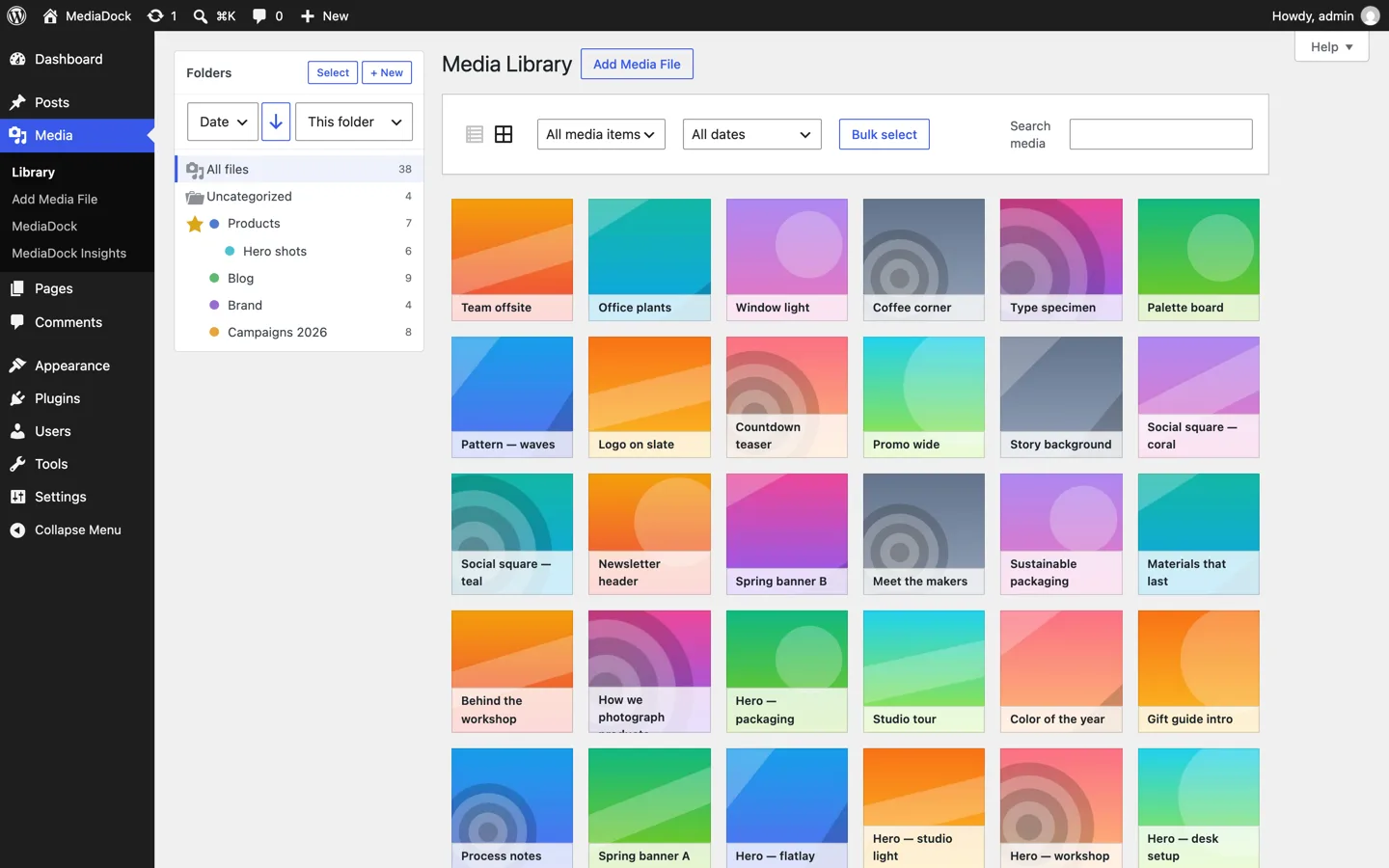
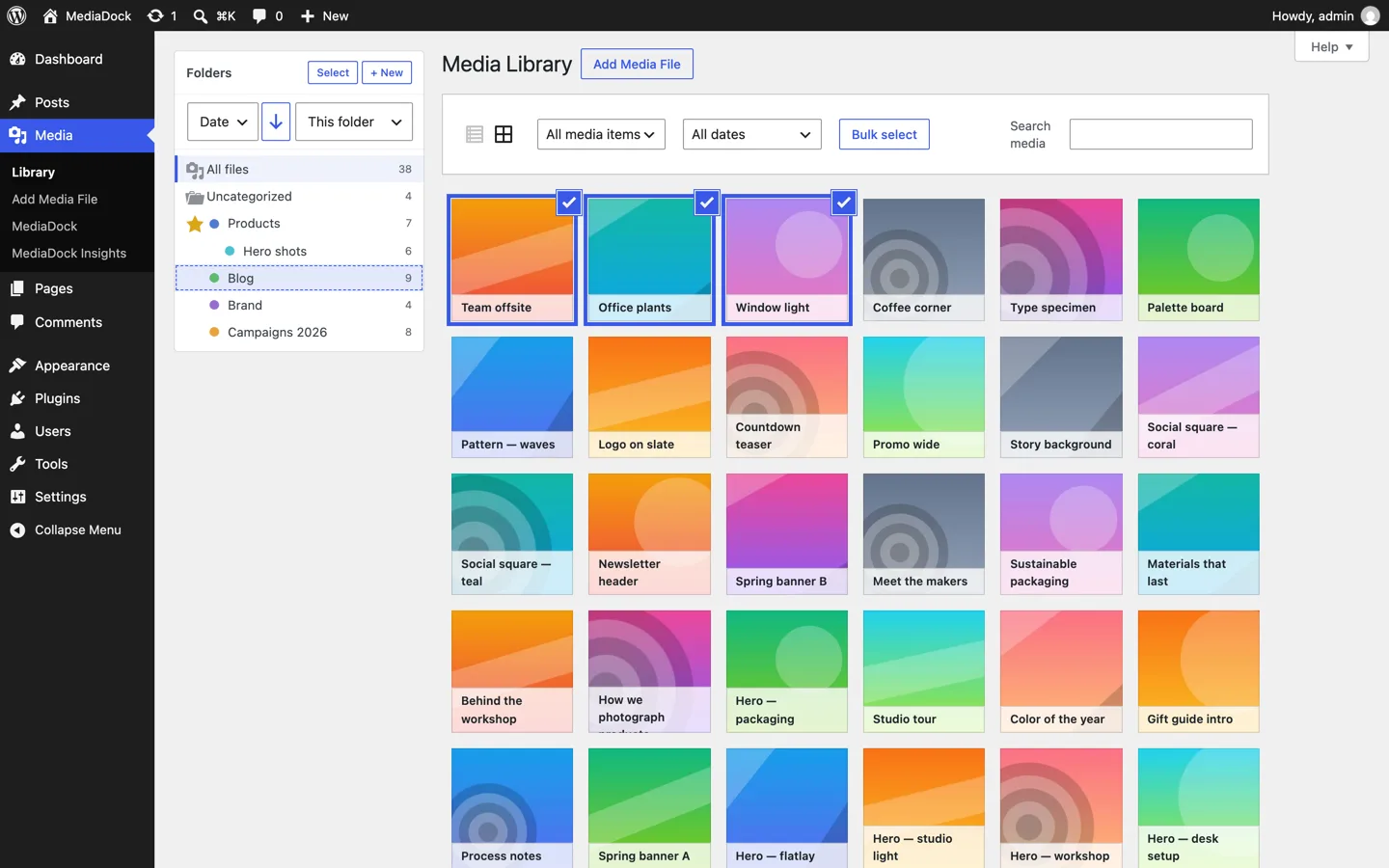
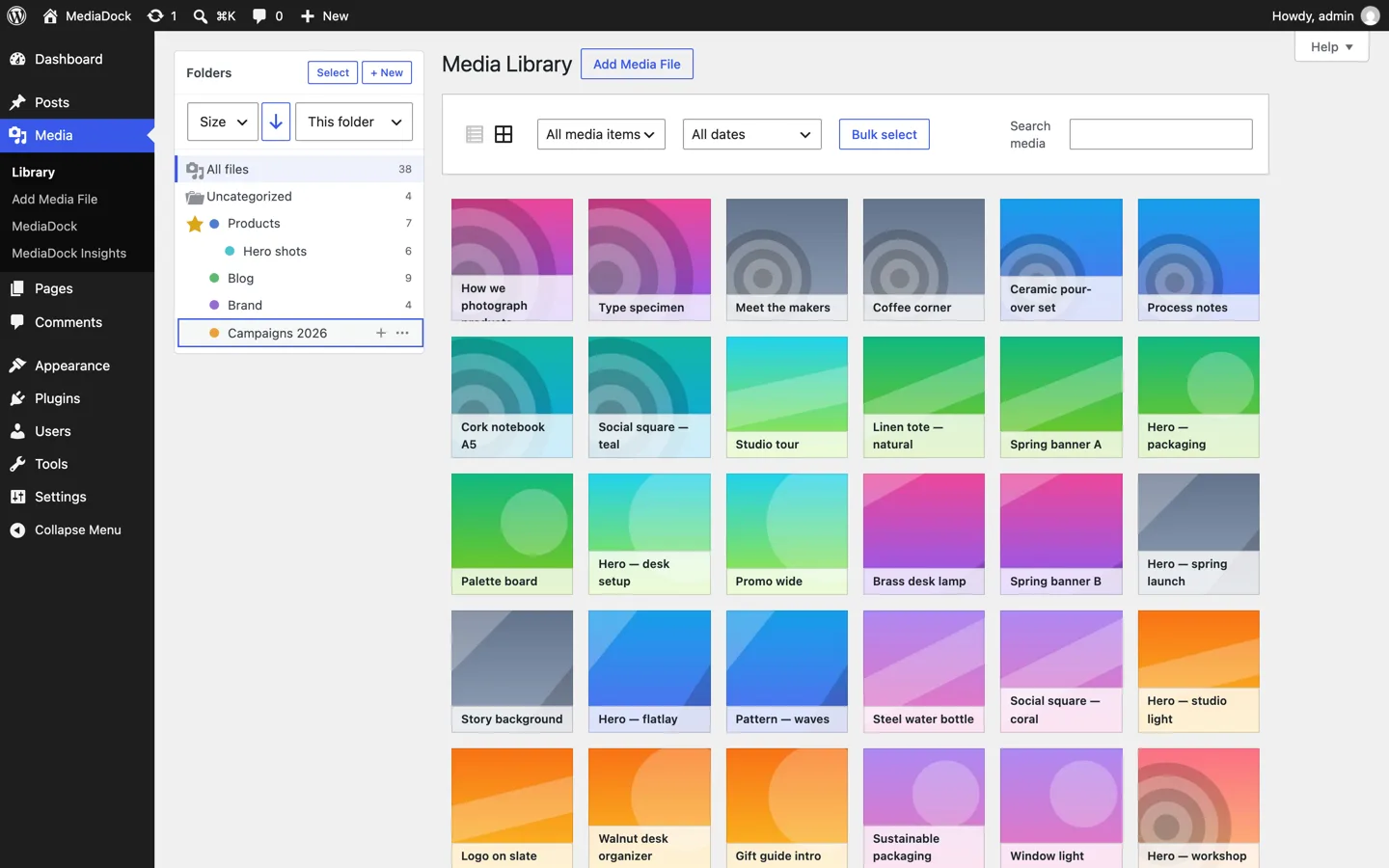
Your folders sit right in the grid, as tiles beside your files. Select files and folders together and drag them onto a folder as one stack, or send them with Move to… without dragging at all. Nest as deep as you like, reorder by dragging, rename inline, color folders and star the ones you live in.
Undo the scary things
Moves and folder deletions can be undone, with a click or with Ctrl/⌘+Z. Deleting a folder asks whether its files should go too, and the destructive path needs a typed confirmation before it runs.
The same folders everywhere
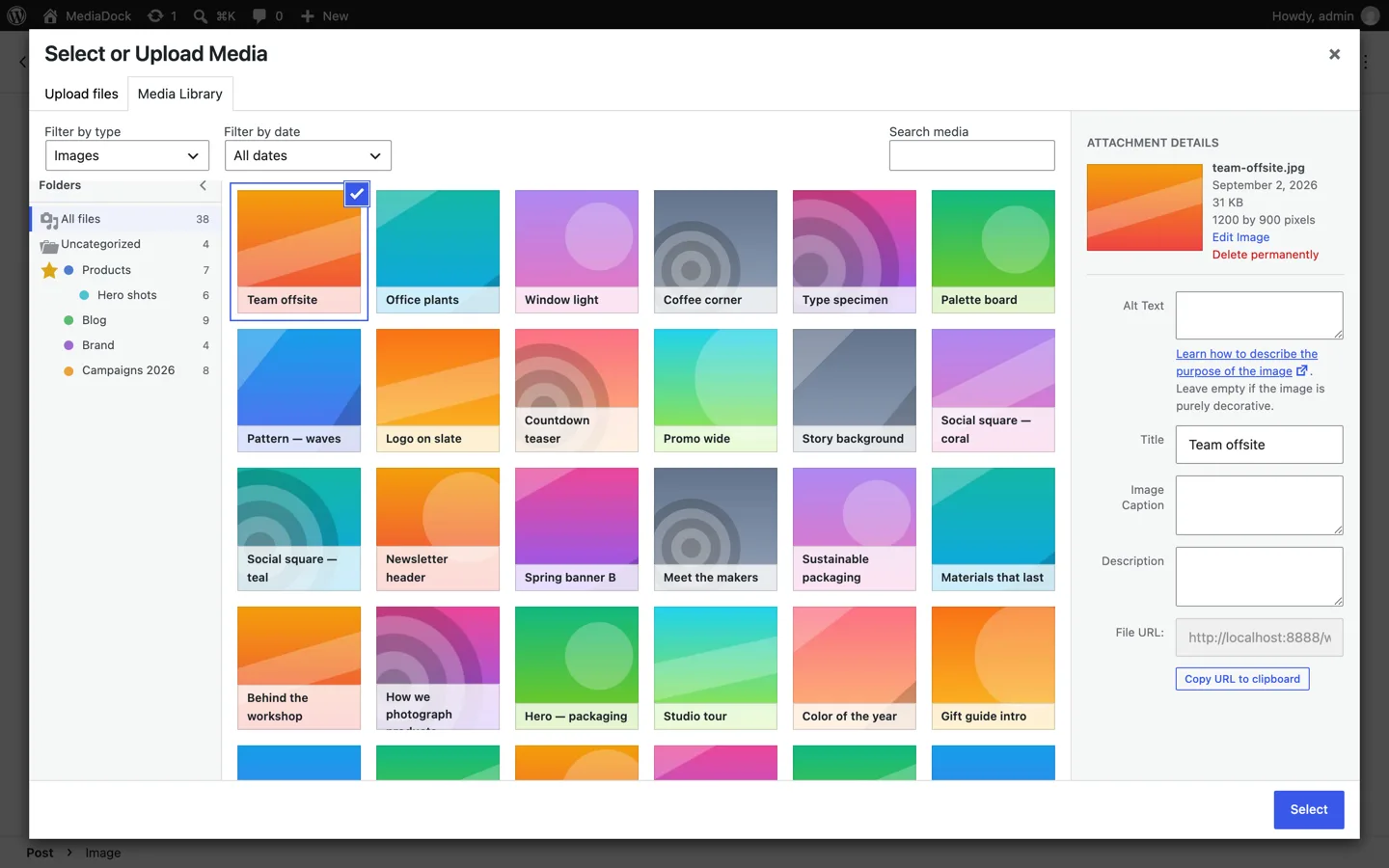
One integration at the WordPress media layer puts the sidebar in the Media Library grid, its list view and the media modal — Gutenberg, the Classic Editor, WooCommerce, Elementor and Flatsome included — with your folders as tiles or chips above the files. New uploads land in the folder you are looking at, and files dropped from your desktop onto a folder upload straight into it.
Adding folders to the WordPress Media Library
Three steps, no configuration file and no database migration. The free version does all of this.
Install the plugin
Install Media Folders from WordPress.org under Plugins → Add New and activate it: the folder sidebar appears in Media → Library. Pro is an add-on that needs this free plugin: keep it active, upload the add-on's zip under Plugins → Add New → Upload, activate it and enter the license key from your purchase email when it asks.
Create your first folders
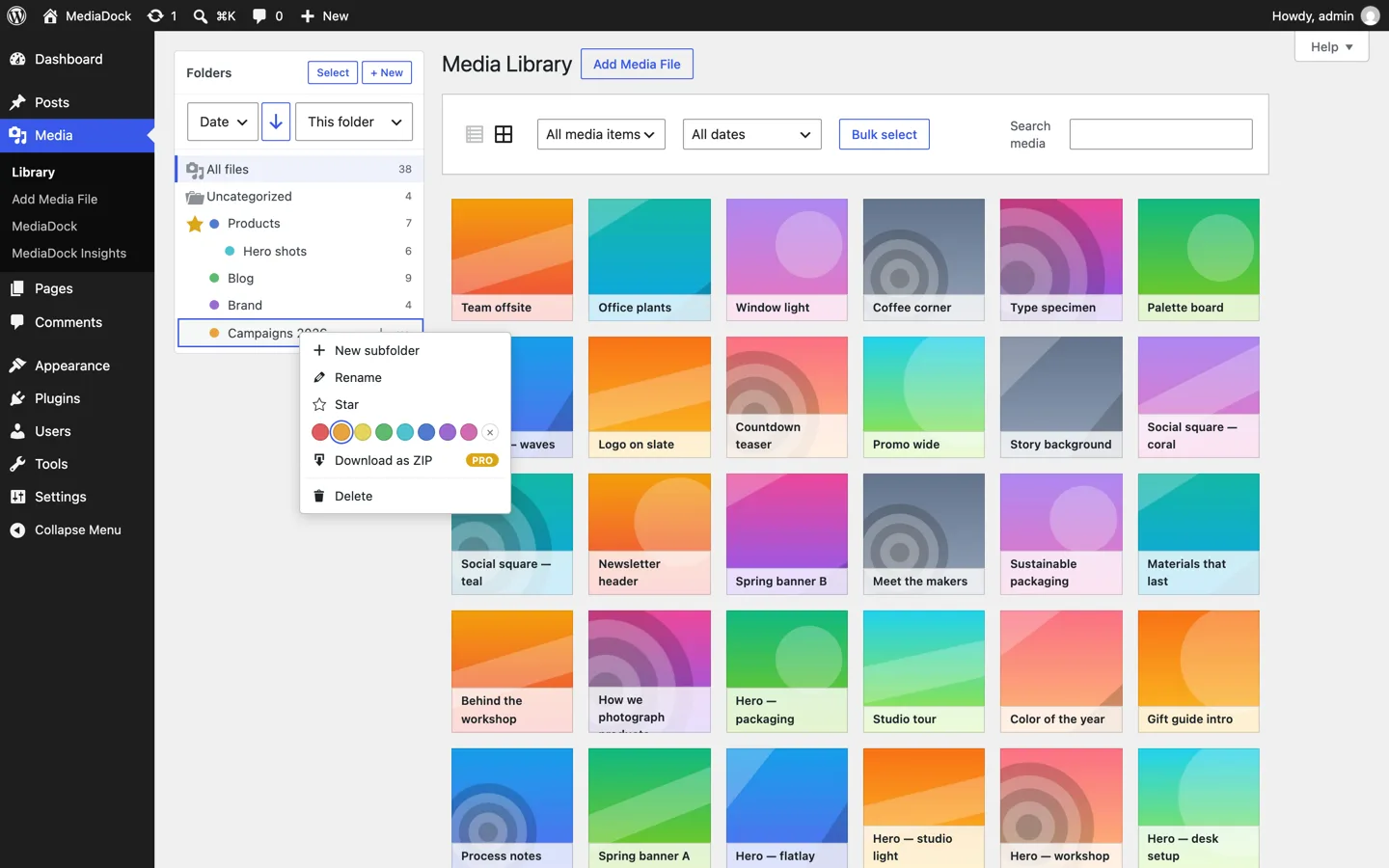
Use the New folder button or tile, then right-click any folder — in the sidebar or on its tile — to add a subfolder, rename it, colour it or star it. Nest them as deep as your library needs.
Drag your files in
Select files in the grid — draw a box around them, or shift-click and ctrl/⌘-click — and drag them onto a folder tile or a sidebar folder. They travel as one stack, and a tip says where they will land. Nothing moves on disk, so a wrong drop is one undo away.
Why Media Folders
Virtual folders
Drag-and-drop folders for the Media Library. Files never move on disk, so nothing on your site can break — and removing the plugin leaves everything exactly as it was.
Cloud offload (Pro)
Move media to Cloudflare R2 or any S3-compatible storage (S3, Spaces, B2, Wasabi, MinIO). Copy → verify checksums → then delete locally. Fully reversible, per folder or site-wide.
Zero frontend footprint
No CSS or JS on your public site, ever. URL rewriting adds zero database queries — verified with Query Monitor on every release.
Works where you work
One integration at the WordPress media layer means Gutenberg, Classic Editor, WooCommerce, Elementor and Flatsome all get the same folders: the sidebar, plus the folders as chips above the files. The Media Library's list view gets them too.
Lightweight by contract
The admin bundle is about 35KB gzipped, against a hard 80KB budget for the free plugin and Pro together that the build fails on. No React megabundle, no jQuery UI, no AWS SDK.
Easy migration
Importers for FileBird, Real Media Library, HappyFiles, Folders by Premio, Wicked Folders and Enhanced Media Library — resumable, idempotent, and your old data is never touched.
See it in action
Offload media to Cloudflare R2 or any S3-compatible storage
Media Folders Pro moves the files themselves off your server — to Cloudflare R2, Amazon S3, DigitalOcean Spaces, Backblaze B2, Wasabi or MinIO. R2 is the usual recommendation for one reason: it charges nothing for egress, so serving your library costs storage alone.
Copy
The file is uploaded to your bucket. Nothing local is touched yet, so an interrupted move changes nothing at all.
Verify
The remote object is checksummed against the local file. A mismatch stops the move right there instead of losing your original.
Release
Only after a byte-for-byte match is the local copy removed and the URL map updated.
Bring it back
Restore files to your server whenever you want, byte-identical, per folder or site-wide. Offloading is a move you can always reverse.
Rules that keep the library organized for you
Pro turns the folder tree into a policy layer, so organization survives contact with a busy team.
Auto-organize rules
File new uploads automatically by type, date or extension. A library that starts tidy stays tidy without anyone maintaining it.
Per-folder storage
Point one folder at cloud storage and keep another local; a cloud on the folder's tile shows where its new uploads go. Where a file lives becomes a property of its folder, not a single site-wide switch.
Per-folder permissions
Decide which roles can see or change which folders — which starts mattering the moment more than one person uploads.
ZIP downloads and insights
Download a whole folder, or any mix of selected folders and files, as one ZIP, local or offloaded. See each folder's size on its tile, subfolders included, and storage by folder, growth over time, file types and your largest files in the insights dashboard.
Built for libraries with 50,000 files
Every number below is a median measured against a seeded library of 50,032 attachments in 502 folders, 5,000 of them already offloaded. The target was 300ms for every server-side operation.
| Operation | Median |
|---|---|
| Folder tree, routine load | 0.4ms |
| Open one folder, 40 files | 8.1ms |
| Search across 50,032 files | 23.5ms |
| Sort the grid by file size | 60.1ms |
| Move 50 files into a folder | 35.3ms |
| Public page with 20 offloaded images | 47.4ms |
Cold-cache worst case, median of five runs; the full method and raw numbers ship in the plugin repository. The public page number is a whole page render — URL rewriting reads a cached map and adds zero database queries, proven by an automated test on every release.
The admin bundle is about 35KB gzipped, against a hard 80KB budget that covers the free plugin and Pro together: if a change pushes the total over, the build fails. No React megabundle, no jQuery UI, no AWS SDK.
Switching from FileBird, Real Media Library or HappyFiles
Built-in importers rebuild your existing folder tree inside Media Folders. Imports are resumable and idempotent — running one twice duplicates nothing — and your old plugin's data is never modified, so going back stays an option.
- FileBird
- Real Media Library
- HappyFiles
- Folders by Premio
- Wicked Folders
- Enhanced Media Library (categories)
The importers live under Media → WorkMore Media Folders, and they are in the free version.
How it compares
Folder plugins organize; offload plugins move files to the cloud. Media Folders is the one that does both — one settings screen, one support conversation, one plugin to keep updated.
| Media Folders | FileBird | WP Offload Media | |
|---|---|---|---|
| Media folders | ✓ | ✓ | — |
| Cloud offload (R2 / S3-compatible) | ✓ Pro | — | ✓ |
| Folders + offload in one plugin | ✓ | — | — |
| Per-folder storage rules | ✓ Pro | — | — |
| Bring files back to local, byte-identical | ✓ | n/a | ✓ |
| Rewrites URLs in your database | Never | n/a | Optional |
| Frontend assets added | None | None | None |
The honest version: if folders are all you need and FileBird already does the job, you do not need to switch. Media Folders earns its place when the library has grown big enough that storage costs real money, when you want organisation and storage to be one tool instead of two plugins that each half-know about your files, or when "reversible" has to mean something you can verify rather than something a vendor promises.
Comparison reflects our understanding of the listed plugins' primary feature sets at the time of writing; each does more than fits in a table.
Designed so you can leave
Lock-in is a design decision, and we made the opposite one. Every part of Media Folders is built to be undone.
Deactivate changes nothing
Turn the plugin off and your media library goes back to the grid WordPress shipped. No files moved, no URLs rewritten, nothing to clean up.
Uninstall only if you say so
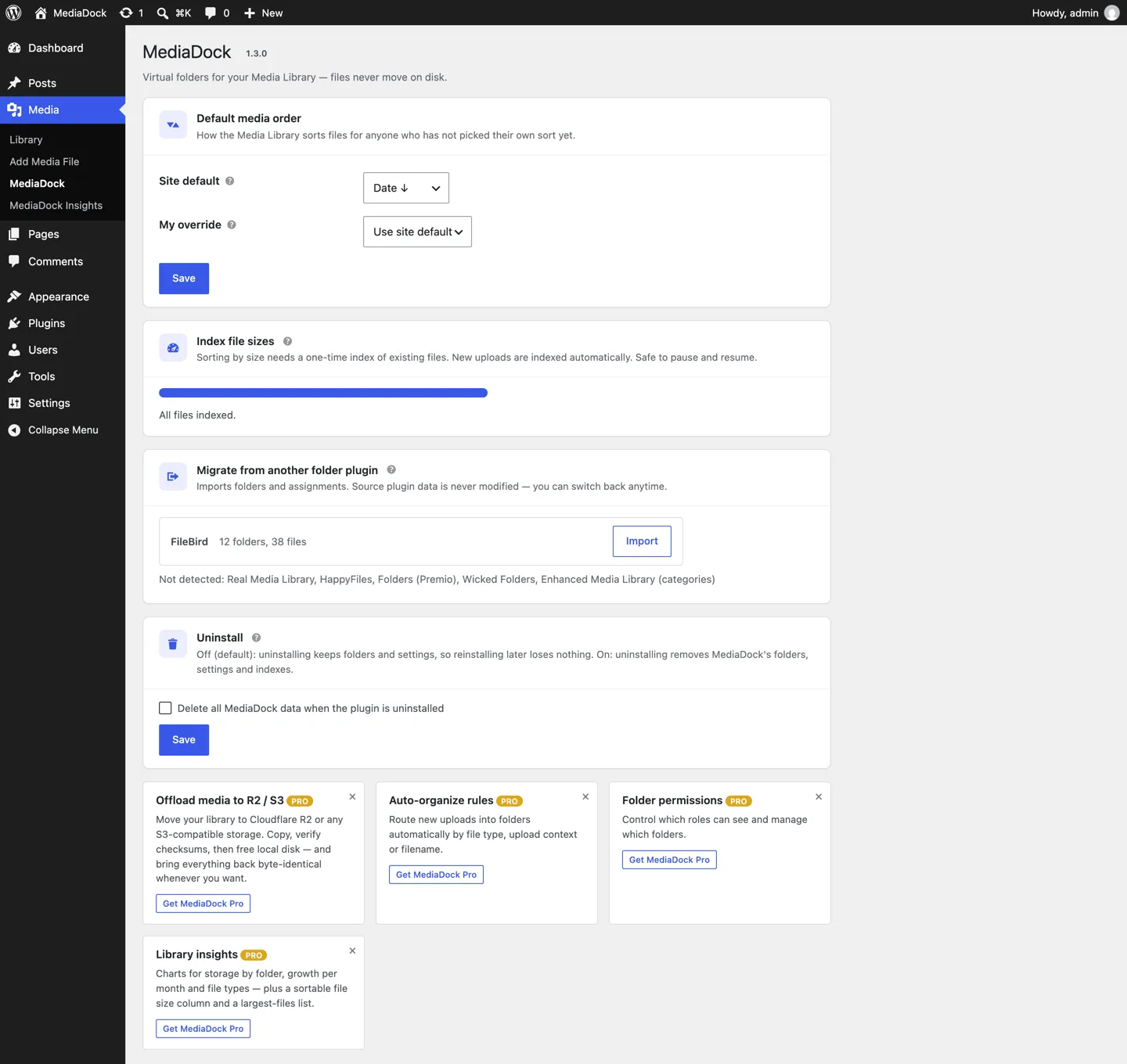
Media Folders deletes its own data on uninstall only when you opt in under settings. Change your mind, reinstall, and your folder tree is still there.
Your old plugin still has its data
Importers copy your folder structure across without modifying the source plugin, so trying Media Folders never burns the bridge back.
Who it is for
Agencies and multi-site teams
Client sites arrive with years of uploads from whoever came before. Folders plus per-folder permissions make a shared library navigable for people who did not upload any of it.
WooCommerce stores
Product photography multiplies fast: several images per product, several generated sizes per image. Offload the archive to object storage and keep the store quick without deleting anything.
Publishers and long-running blogs
Ten years of posts leaves a library nobody can search. Folders, sort-by-file-size and the insights dashboard turn it back into something you can manage.
Pricing
Yearly
- Cloud offload to R2 / S3-compatible storage
- Per-folder storage rules & auto-organize
- ZIP download of folders and selections (local + remote)
- Library insights dashboard
- Priority email support
- Updates & support while active
- Auto-renews — cancel anytime
Lifetime
- Cloud offload to R2 / S3-compatible storage
- Per-folder storage rules & auto-organize
- ZIP download of folders and selections (local + remote)
- Library insights dashboard
- Priority email support
- Updates & support for as long as the plugin exists
- Pay once; move it between sites from your account
Frequently asked questions
Do folders move my files or change their URLs?
No, never. A Media Folders folder is a taxonomy term attached to an attachment, not a directory on disk. WordPress keeps storing uploads in its usual year and month structure, so every existing URL, CDN cache, backup and hard-coded link keeps working exactly as before. Reorganising 10,000 files is a database change measured in milliseconds, not a file operation that can half-finish.
What happens if I deactivate or uninstall Media Folders?
Deactivating hides the folders and leaves your media untouched — the library returns to the grid WordPress ships. Uninstalling removes Media Folders data only if you opted in to "delete data on uninstall" in settings; otherwise your folder tree is still waiting after a reinstall. If files were offloaded, bring them back to local storage before removing the plugin and the site never notices anything happened.
Do I need Pro to get folders?
No. Folders, folder tiles, drag and drop, nesting, colors, search, bulk moves and every importer are in the free version on WordPress.org. Pro adds cloud offload, per-folder rules and permissions, ZIP downloads of folders and selections, folder sizes and the insights dashboard.
Does it work with Gutenberg, WooCommerce and page builders?
Yes. Media Folders extends the standard WordPress media modal, which Gutenberg, the Classic Editor, WooCommerce, Elementor and Flatsome all use: each gets the folder sidebar and the folders as chips above the files, and there are no per-builder integrations to go stale.
Will it slow down my public website?
No. With offload unused, Media Folders registers no frontend hooks at all: no CSS, no JS, nothing. With offload in use, URL rewriting is a string swap against a cached, autoloaded map, so it adds zero database queries — an automated test asserts exactly that on every release, and a public page carrying 20 offloaded images renders in 47ms end to end in our benchmark.
Which cloud storage can Pro use?
Cloudflare R2, Amazon S3, DigitalOcean Spaces, Backblaze B2, Wasabi and MinIO — anything that speaks the S3 API, including self-hosted endpoints. R2 is the usual recommendation because it charges nothing for egress, so a media-heavy site pays for storage and not for every visitor who loads a page. You can also point different folders at different destinations instead of committing the whole library at once.
Can I bring offloaded files back to my server?
Yes, whenever you want, per folder or for the whole site. Files come back byte-identical, because every move is copy, checksum, then release rather than a one-way transfer.
How large a library can it handle?
It is benchmarked at 50,032 attachments in 502 folders with every server-side operation under 300ms; a routine folder tree load answers in well under a millisecond from cache.
Can I import the folders I already made in another plugin?
Yes. FileBird, Real Media Library, HappyFiles, Folders by Premio, Wicked Folders and Enhanced Media Library categories all have importers. They are resumable, running one twice duplicates nothing, and the source plugin's data is never modified.
What happens to the files I uploaded before installing it?
Nothing, and all of them are immediately available. Until you file them, existing attachments sit at the top level of the library, under All files and next to your folders, where you can search, select and drag them into folders in bulk. There is no import step and no scan to sit through before the library is usable.
Does it change how WordPress stores uploads on the server?
No. Uploads keep going into the usual wp-content/uploads year and month directories, untouched. That is the whole point of virtual folders: the organisation you see in wp-admin is independent of the folder structure on disk, so neither one constrains the other.
Which languages does Media Folders speak?
The plugin interface ships in English and ten translations, Thai included, and this site is available in the same eleven languages: English, Thai, Japanese, German, French, Spanish, Italian, Dutch, Brazilian Portuguese, Indonesian and Simplified Chinese.