Your own CSS and JavaScript.
In the right place, on any theme.
StyleScript is one place for the code you add to your site yourself: your CSS, your JavaScript, and the snippets that belong in <head>, right after <body> or before </body>. It is written in a real code editor, previewed before anyone else sees it, kept in a history you can restore — and it stays when you switch themes.
Why custom code goes missing
Most sites keep their own CSS and scripts somewhere that was never meant to hold them for long — and it shows the day the theme changes.
Kept by the theme
The Customizer's Additional CSS and a theme's own option boxes — Flatsome's custom CSS and header and footer scripts, for one — belong to the theme. Switch or rebuild it, and the code stays behind.
Code that does not stick
A rule that loses to the theme's own stylesheet, a page cache that keeps serving yesterday's version, a snippet pasted with its <script> tags into the wrong box.
More than you asked for
A snippets plugin that runs PHP, loads its own files on every page and nudges you to upgrade — when all you needed was a place for some CSS and a script.
Five boxes, each printed where it belongs
StyleScript keeps your code apart from the theme and prints every box in the place it is meant for, through WordPress's own script and style loading. Any box can be switched off without losing its code.
CSS, last in <head>
After your theme's stylesheets and after the Customizer's Additional CSS, so a rule with the same selector as the theme's wins.
JavaScript where it loads best
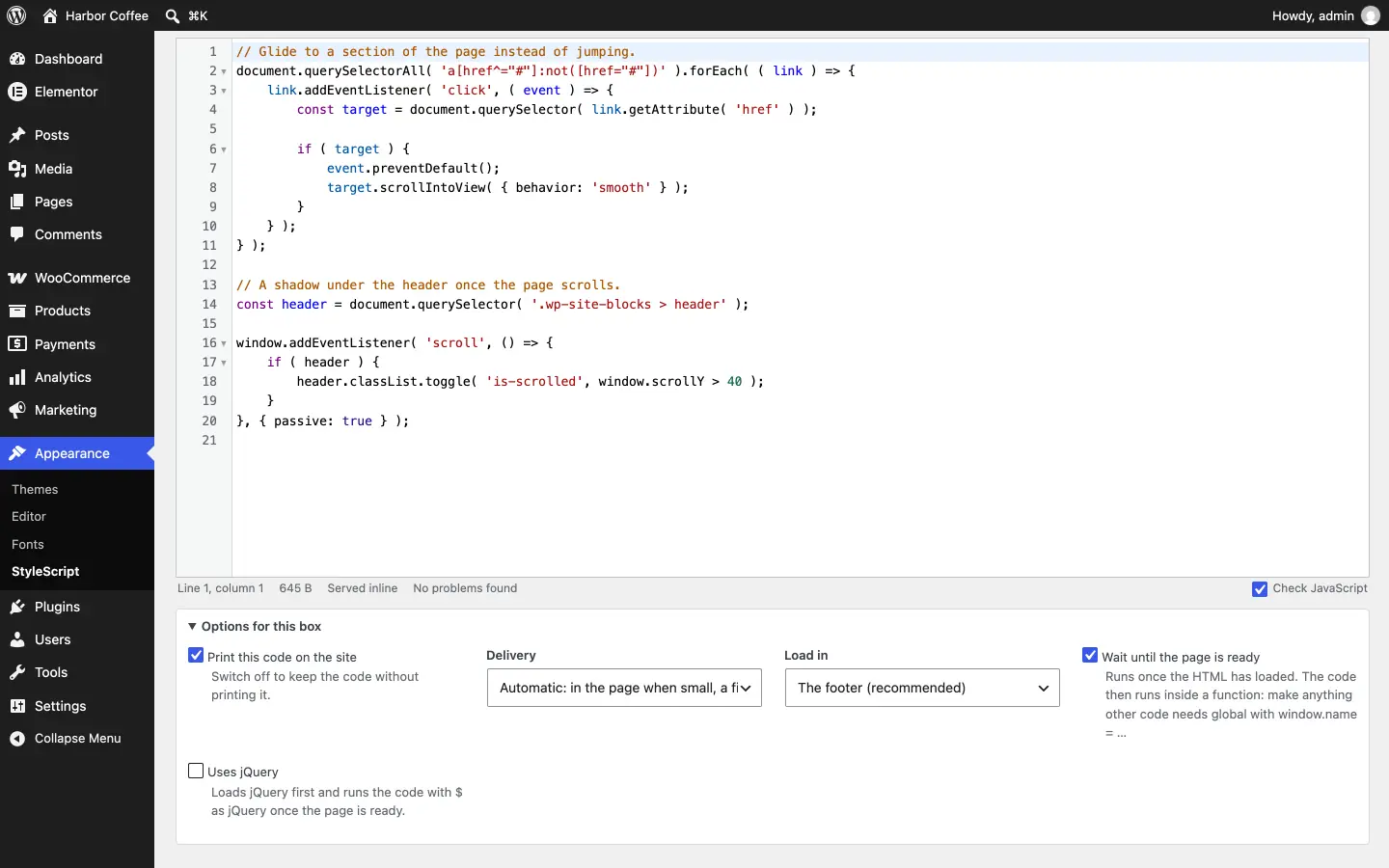
In the footer or in <head>, optionally once the page is ready, optionally with jQuery loaded first — the plugin notices when your code uses $( and offers it.
Markup at three places
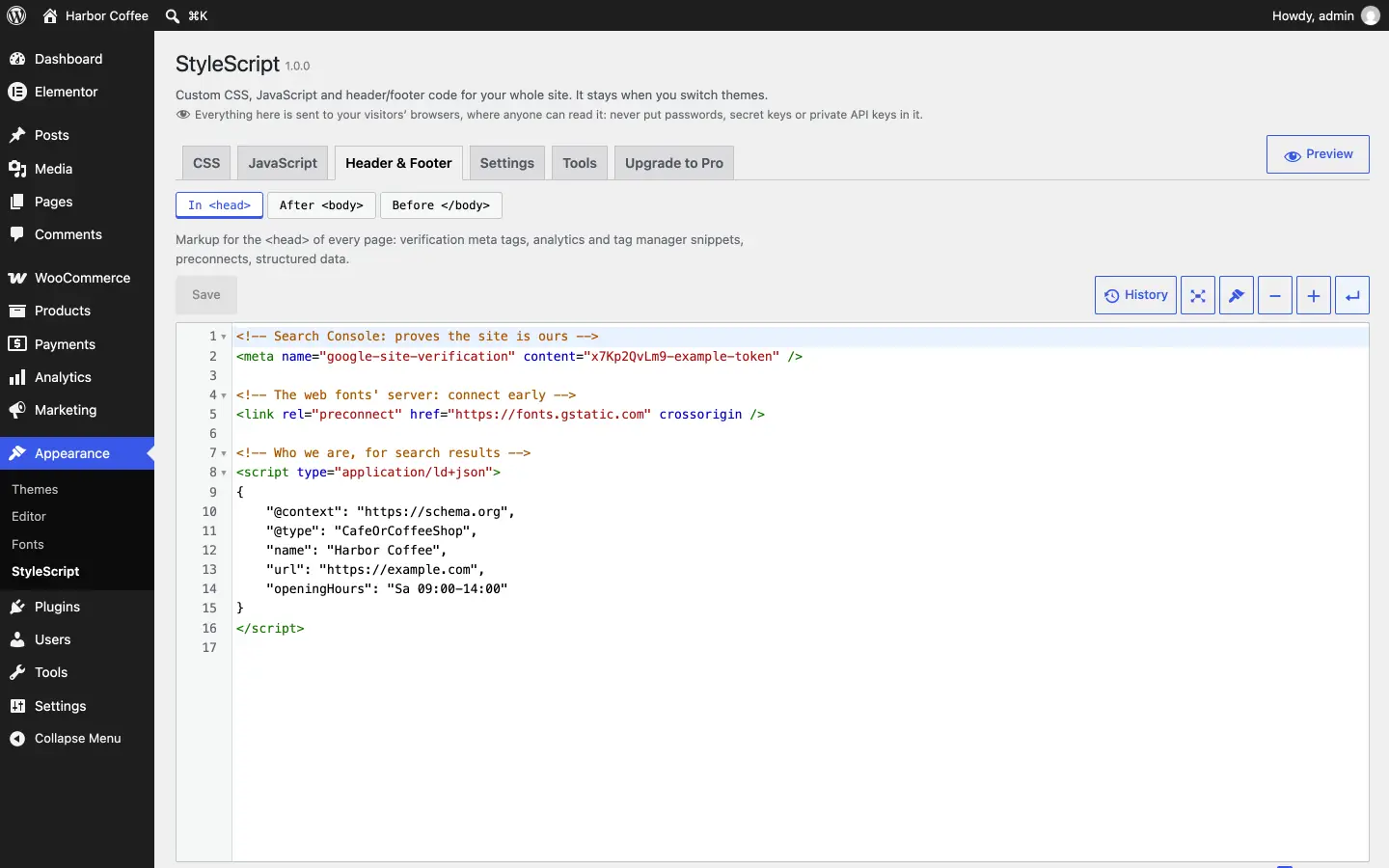
In <head>, right after <body> and before </body>: verification tags, analytics and tag manager snippets, pixels, chat widgets, structured data — early, normal or late among the other code there.
Three steps to your first rule
Nothing changes on your site until you save, and every save can be undone.
Install
Install the free plugin and open Appearance → StyleScript. Code you keep in the Customizer or in Flatsome moves in with one click from the Tools tab.
Write and preview
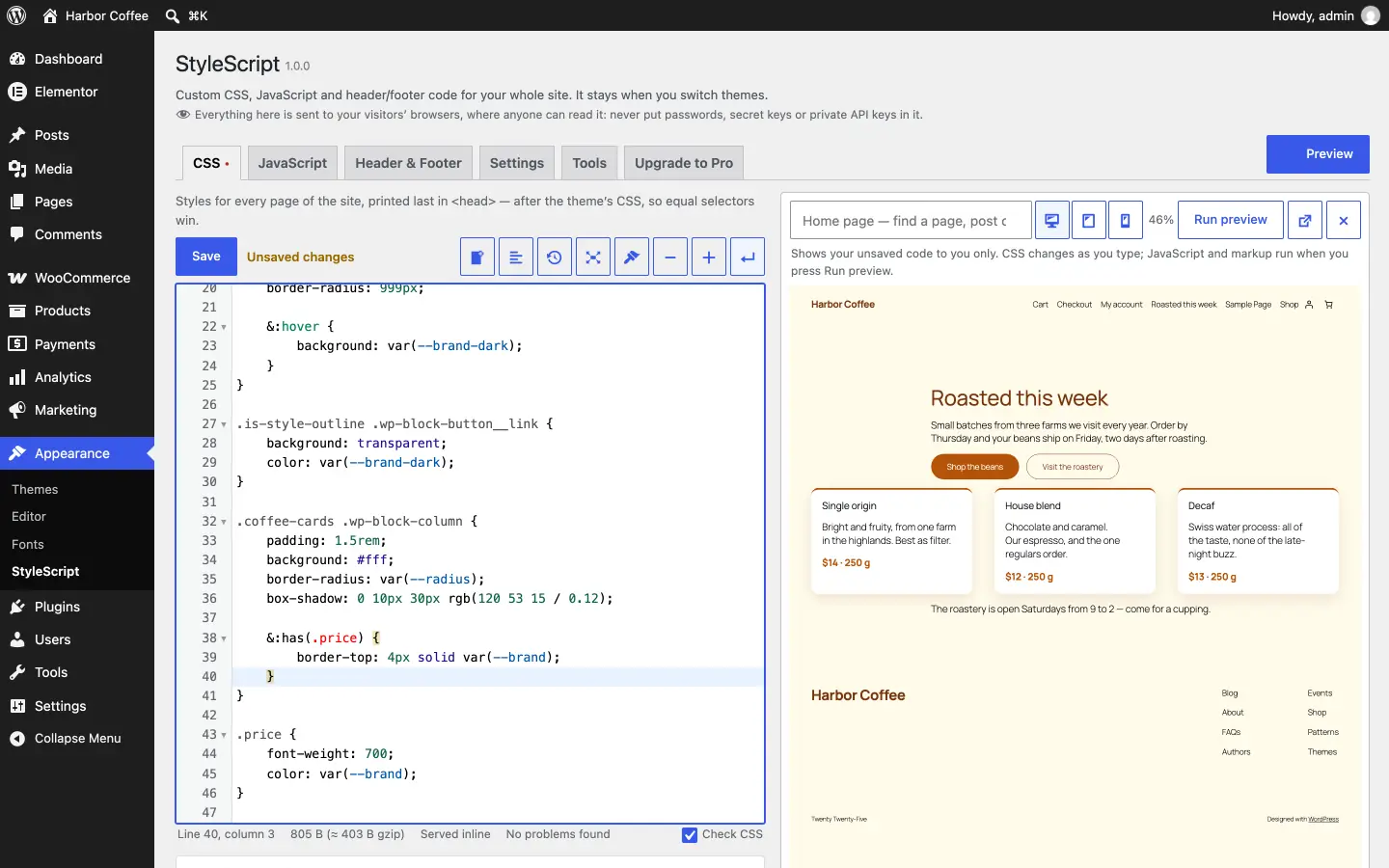
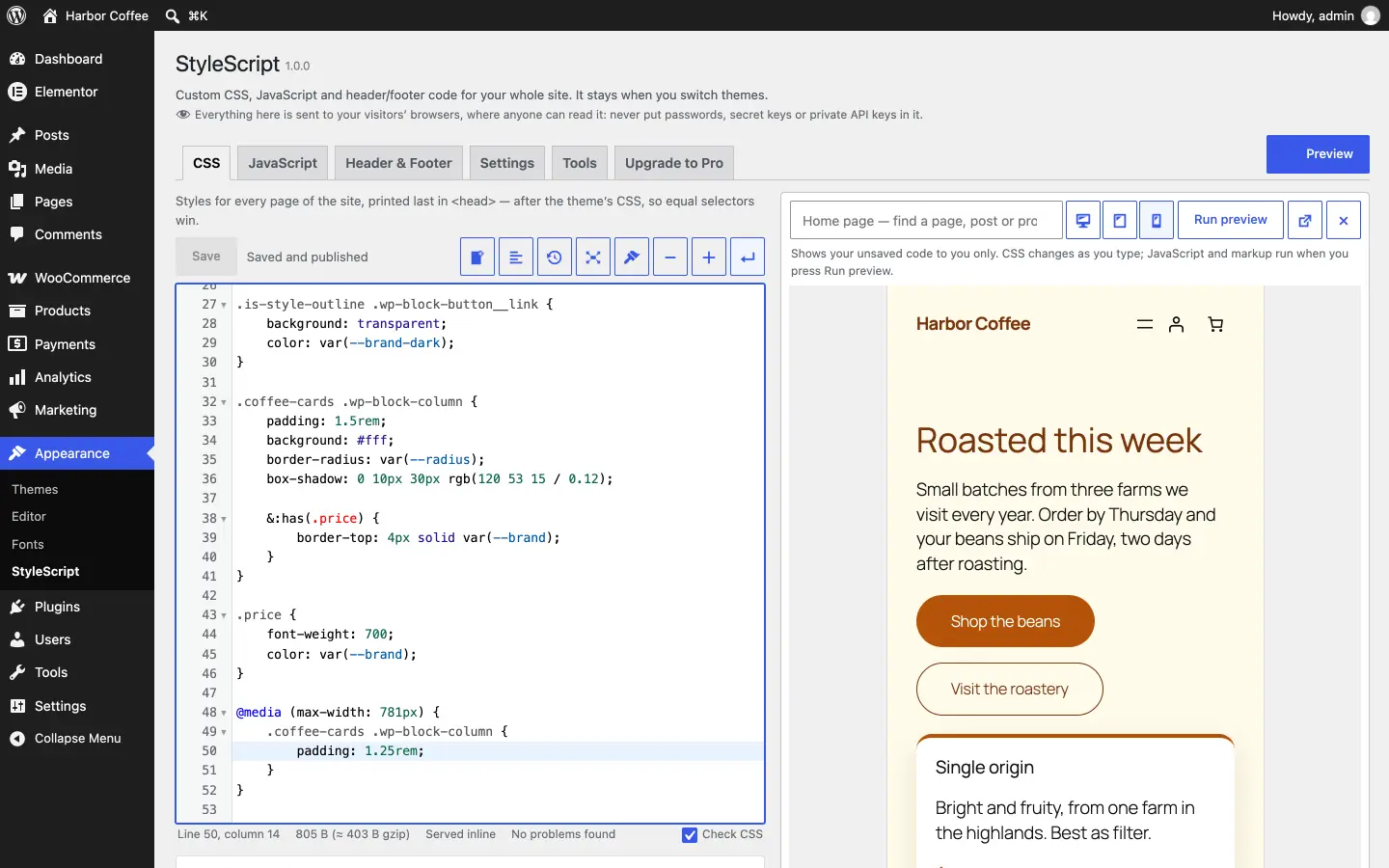
Write in the CSS, JavaScript or Header & Footer tab. Preview shows the change on your real site, to you only — CSS changes as you type.
Save
Press Save, or Ctrl/Cmd+S. The code is live at once, the page caches are cleared, and History keeps the version before it.
Why StyleScript
A code editor that works like one
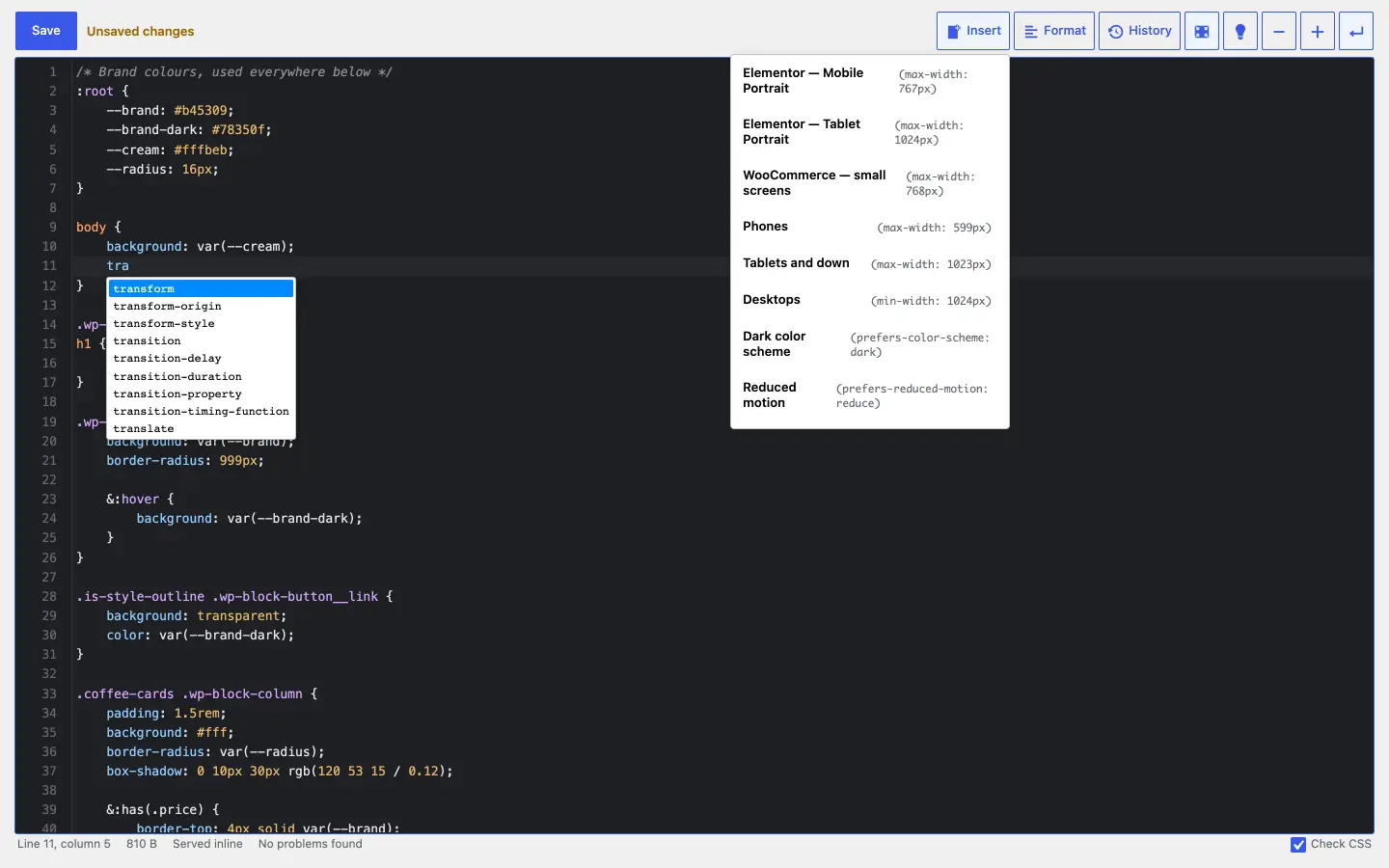
WordPress's own CodeMirror, set up properly: highlighting, autocomplete as you type, search and replace, multiple cursors, folding, full screen and a dark theme. Ctrl/Cmd+S saves.
A check that knows modern CSS
A missing bracket, an unclosed comment or a JavaScript syntax error is flagged as you type, and saving is never blocked. Nesting, :has(), @layer and color-mix() are left alone.
See it before your visitors do
Preview shows your real site with the code you have not saved yet, to you only — at desktop, tablet and phone widths, on any page, post or product.
Every version kept
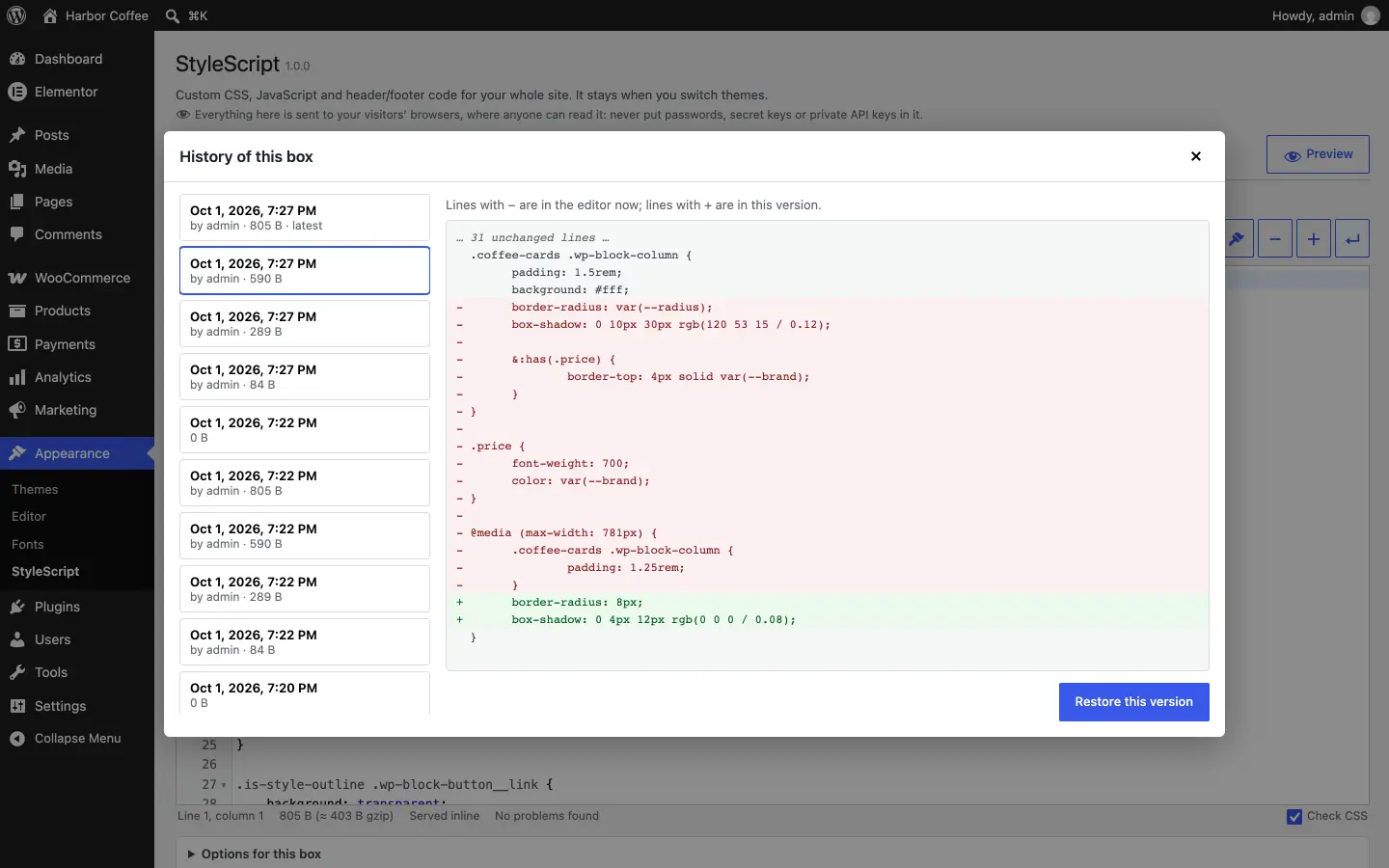
Each save is a version: compare one with the editor line by line and restore it. A save over someone else's newer change asks first.
Safe mode, three ways
A link that shows you the site without the custom code, a switch that takes it off for everyone, and a constant or WP-CLI for the day the dashboard is out of reach.
Your site's own breakpoints
Insert adds a media query for Flatsome's, Elementor's and WooCommerce's breakpoints when they run, next to the common ones. Format tidies your CSS.
See it in action
Light for your visitors
What you add is all your visitors get — the plugin itself adds nothing to their pages.
No file of its own
Visitors never load a stylesheet or a script of the plugin itself, and pages make no extra database query for it.
Empty boxes add nothing
A box you leave empty or switch off hooks nothing into your pages. Small code is printed in the page; larger code becomes a file browsers cache.
Never a stale page
Files are named after their content, and the page caches of WP Rocket, LiteSpeed Cache, W3 Total Cache and other caching plugins and hosts are cleared on every save.
Coming in Pro: code for one page, and effects ready to use
Pro is a separate add-on, in development. It adds what the free plugin leaves to the whole site — the free plugin stays complete without it.
Code for a single page
CSS, JavaScript and header and footer code for one post, page or WooCommerce product, in a StyleScript box in the post editor — the same editor, with its preview.
Site-wide code off where it gets in the way
Switch any site-wide box off on the pages you choose — a landing page that needs none of the site's scripts, for one.
Ready-made effects
Skeleton loading, image sequence animation on scroll and video scrubbing on scroll, set up in a form with a preview instead of a library to wire up.
Free and Pro
The free plugin is complete: every site-wide box, the editor, history, preview and safe mode — nothing in it is locked or counted. Pro, a separate add-on in development, adds code for single pages and ready-made effects.
| Free | Pro | |
|---|---|---|
| CSS, JavaScript and header/footer code for the whole site | ✓ | ✓ |
| Code editor: syntax check, autocomplete, search and replace, full screen, dark theme | ✓ | ✓ |
| History and restore, preview, safe mode | ✓ | ✓ |
| Export, import, and bringing in code from the Customizer and Flatsome | ✓ | ✓ |
| CSS, JavaScript and header/footer code for single posts, pages and products | — | ✓ |
| Ready-made effects: skeleton loading, image sequence and video scrubbing on scroll, and more | — | ✓ |
| Support | ✓ WordPress.org forums | ✓ By email |
The honest version: the free plugin is all most sites need. Pro is for the page that needs code of its own, and for effects you would otherwise write by hand.
The same rows the free plugin shows on its "Upgrade to Pro" tab. Pro is in development: its price is set, and the Buy button arrives with its release.
Who it is for
Shops on Flatsome and WooCommerce
Custom CSS that survives theme updates and switches, Flatsome's breakpoints one click away, and the code from the theme's options moved over in one go.
Sites built with Elementor
Site-wide CSS and scripts without Elementor Pro's custom code, applied in the editing canvas too — your CSS shows while you design.
Agencies looking after many sites
The same tool on every client site: export on one, import on the next, WP-CLI for scripts, and safe mode for the day a client's paste breaks a page.
Pricing
Pro
- CSS, JavaScript and header/footer code per post, page and product
- Site-wide code switched off on the pages you choose
- Ready-made effects: skeleton loading, image sequence and video scrubbing on scroll
- Preview from the post editor
- Support by email and automatic updates
- Updates & support while active
- Nothing breaks if it lapses
Available soon
Frequently asked questions
Who can add or change code?
Administrators who hold WordPress's "unfiltered HTML" permission: the administrators of a single site, and the network administrators of a multisite. It is the permission WordPress itself requires before anyone may add scripts, because this code runs in every visitor's browser. Other administrators see the code read-only, with a note explaining why.
Will it slow my site down?
No. The plugin loads no file of its own for visitors and adds no database query; it decides once per request whether there is anything to print, and does nothing at all when every box is empty.
What happens to my code when I change themes?
Nothing: it is stored by the plugin, not by the theme. That is the difference from the Customizer's Additional CSS and from theme options.
Where exactly is my CSS printed?
As the last stylesheet in <head>: after your theme's stylesheets and after the Customizer's Additional CSS, so a rule with the same selector as the theme's wins. Under Settings you can print it with the theme's stylesheets instead.
My site broke after I saved some code. How do I undo it?
Open the box, press History and restore an earlier version. To look at the site without the custom code first, use the safe-mode link on the Tools tab — it affects only you. If the dashboard is out of reach, add WMSS_SAFE_MODE to wp-config.php or run wp stylescript safe-mode on; nothing is deleted either way.
Does it work with Elementor, Flatsome and other page builders?
Yes. Your code is printed on every page the builder produces. Inside a builder's editing canvas your CSS applies, so you see it while you design, while your JavaScript and markup stay out of the builder's way.
Does it work with caching plugins?
Yes. Saving clears the page cache of WP Rocket, LiteSpeed Cache, W3 Total Cache, WP Super Cache and others, and of hosts such as WP Engine. Files are named after their content, so a cached page never points at a stale or missing one.
Can I add PHP code?
No, by design: the plugin never runs PHP. For PHP, use a child theme or a code snippets plugin.
Is the free plugin on WordPress.org?
It is in review there. Until it is listed, the setup guide has the download; a site that installs it now updates from WordPress.org once it is listed — it is the same plugin, under the same name.
When can I buy Pro?
When it is released: the add-on is in development, after the free plugin. Its price is on the pricing page, and its Buy button appears there on the day it can be bought.
What happens if I uninstall the plugin?
Deactivating never deletes anything. Uninstalling removes the code, its history and the settings only if you opted in under Settings; otherwise everything stays for a later reinstall.